You just bought a new RGB LED strip or smart lamp, downloaded the app, plugged it in—and nothing happens. The device won’t pair, the app can’t find it, and you’re stuck in the dark. You’re not alone. Thousands of users face the same frustration when setting up their Lotus Lamp X for the first time. The good news? Once you know the exact steps, connecting takes less than five minutes.
This guide covers everything you need to connect Lotus Lamp X using the Lotus Lantern app, control colors and effects, integrate with Home Assistant, and fix the most common pairing issues. By the end, you’ll have full wireless control over your smart lighting.
Power On Your Lotus Lamp X Device
Before any app can detect your device, the physical hardware must be powered correctly. Skip this step and you’ll chase phantom connection problems forever.
Check Your Power Supply
- Plug the LED strip, lamp, or headboard light into a working outlet using the correct voltage adapter (typically 5V, 12V, or 24V).
- Look for a power indicator light on the controller box or listen for a soft click when you connect power.
- Verify all connections between the adapter, controller, and LED strip are fully seated and secure.
Critical: An unpowered or underpowered controller will not broadcast its Bluetooth signal, making it completely invisible to the app.
Wait for Initialization
- After plugging in, wait 10–15 seconds for the internal Bluetooth module to boot up.
- The controller needs this time to begin advertising its presence to nearby devices.
- Do not open the app during this window—the device won’t appear yet.
Pro Tip: Stand within 3–5 feet of the device during setup. Walls, metal objects, and other electronics can block the BLE signal and prevent discovery.
Download the Lotus Lantern App
The Lotus Lamp X does not use an app called “Lotus Lamp.” Instead, it connects through an app named Lotus Lantern—available on both Android and iOS.
Find the Correct App
- Open the Google Play Store (Android) or App Store (iOS).
- Search for “Lotus Lantern” and look for the developer listed as Lotus Technology or similar.
- Install the app. No registration or account is required to use it.
Warning: Fake apps exist. Only download versions with high download counts and positive reviews mentioning RGB strip or LED control.
Grant Required Permissions
Once installed, prepare your phone before launching the app:
- Go to Settings > Bluetooth and turn Bluetooth ON.
- Return to the Lotus Lantern app.
- Tap the hamburger menu (☰) in the top-left corner.
- Select “Devices” or “My Devices”.
- Tap the refresh icon to start scanning.
Allow these permissions when prompted:
- Bluetooth access – essential for device scanning
- Location services – required on Android for BLE detection
- Microphone access – needed for Music and Mic modes
iOS Note: Apple restricts background Bluetooth and cache management. If the app fails to connect, delete and reinstall it—this clears stuck states that cause persistent failures.
Scan and Connect via Bluetooth

Pairing happens inside the app, not in your phone’s native Bluetooth settings. This is the most common point of failure for new users.
Start Device Discovery
- With the LED powered and the app open, tap “Scan” or wait for automatic discovery.
- The app searches for nearby BLE devices using default names like:
BLEDXXXXELK-BLEDOMRGBIC_LEDSMARDBLU
These names are hard-coded into the controller firmware and cannot be changed without advanced tools.
Select Your Device
- Wait up to 15 seconds for your device to appear in the list.
- Tap the correct device name to connect.
- Connection is usually instant—you’ll see the control interface load immediately.
If Nothing Appears: Move closer to the device, confirm power is on, restart Bluetooth on your phone, or reset the controller by unplugging it for 10 seconds and replugging.
Control Lighting Modes
After successful pairing, the app unlocks full control over your lights. Here’s how to use each mode.
Use the Color Wheel
- Tap the Color tab at the bottom of the screen.
- Drag your finger around the outer ring to pick any hue.
- Adjust saturation and brightness in the inner circle.
- Tap OK to apply your selection.
For precise color control:
- Switch to RGB mode
- Manually enter values from 0 to 255 for Red, Green, and Blue
- Use the
+and–buttons to fine-tune each channel
Activate Preset Effects
Go to the Styles tab for dynamic lighting:
- Breathing – gradual fade in/out of brightness
- Fade – smooth transition between colors
- Jump – instant color shifts
- Strobe – rapid flashing
- Rainbow – full spectrum cycling
Adjust the speed and brightness sliders to customize each effect.
Sync Lights to Music
In the Music Mode tab:
- Tap to activate the mode
- Grant microphone permission when prompted
- Choose your input source (built-in or external mic)
- Slide Rhythm Sensitivity higher for more bass response
Best Practice: Play music through external speakers placed near your phone for optimal synchronization.
Enable Voice and Clap Response
Mic Mode reacts to ambient sound:
- Claps, speech, or snaps trigger immediate color changes
- Great for interactive lighting at parties or live streams
- Can run alongside Music Mode for full audio reactivity
Set Daily Schedules
Under Schedule Mode:
- Set your On Time (for example, 18:00)
- Set your Off Time (for example, 23:00)
- The light turns on and off automatically every day
Note: Schedules may reset after power loss or daylight saving time changes—reconfigure if needed.
Enable Shake-to-Change Feature
Want instant fun? Use your phone’s motion sensor to change colors with a shake.
Turn On Shake Control
- Tap the gear icon (Settings) in the top-right corner
- Toggle on “Shake to Change Color”
- Physically shake your phone to switch to a random color
User Favorite: This feature is popular at gatherings but can cause accidental triggers—disable it when not needed.
Manage Multiple Devices
You can control more than one light, but there are limits to be aware of.
Connect Several Strips
- Power and pair each device individually
- Once connected, group them under Modify Pin Sequence or control each separately
Avoid Bluetooth Congestion
- Limit to 5–7 devices per phone for stable performance
- Too many connections cause lag, delays, or spontaneous disconnections
- Keep devices within 10 feet (3 meters) of your phone
Pro Tip: Use Home Assistant for centralized multi-device control without relying on the phone app.
Integrate with Home Assistant
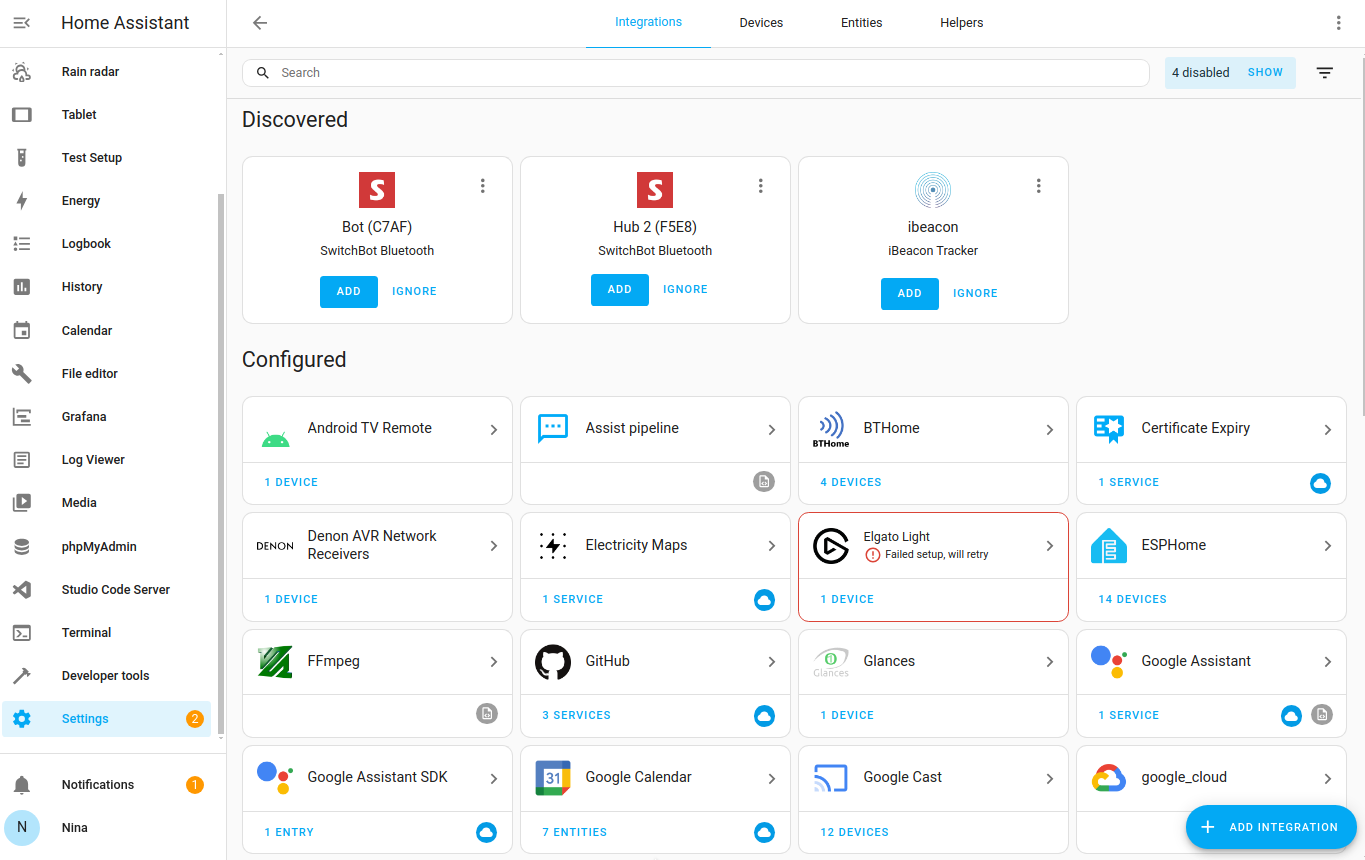
Take your smart lighting further by connecting to Home Assistant (HA) for voice control, automations, and centralized management.
Prerequisites
- Home Assistant OS or Supervised installation
- HACS (Home Assistant Community Store) installed
- A host with Bluetooth capability (built-in or USB dongle)
Install elkbledom Integration
- Open HACS > Integrations
- Click “+” and search for
elkbledom - Install the ELK-BLEDOM custom integration
- Restart Home Assistant
Confirmed by users: “Once installed, it will automatically pick them up.” – Dvalin21 (HA Community)
Add Your Device
- Go to Settings > Devices & Services > + Add Integration
- Search for ELK-BLEDOM
- Enter a Name (e.g., “Bedroom Strip”) and MAC Address (e.g.,
BE:67:0A:1B:2C:3D)
Find the MAC Address
Option 1: From Lotus Lantern App
- Open the app → ☰ menu → My Devices
- Tap your connected device
- View the name and MAC address
Option 2: Use a BLE Scanner
- Install nRF Connect or BLE Scanner on Android
- Scan for devices advertising as
ELK-BLEDOMorBLEDXXXX - Copy the MAC address for use in Home Assistant
Verified: “Used app to discover controller and MAC, then added to HA.” – ryanr05
Troubleshoot Common Issues

Even with perfect setup, problems happen. Here’s how to fix them fast.
Device Not Showing in App
| Cause | Fix |
|---|---|
| Bluetooth turned off | Enable Bluetooth in phone settings |
| Location permission denied (Android) | Enable location access for the app |
| App cache corrupted | Clear cache/data or reinstall the app |
| Out of range | Move within 3–5 feet of the device |
| Controller not powered | Recheck adapter and all connections |
Quick Reset: Unplug the controller for 10–15 seconds, then power it back on and rescan.
App Freezes During Scan
- Disable battery optimization for the Lotus Lantern app
- Force stop and restart the app
- Reboot your phone if the problem persists
Only White Light Displays
This indicates a color channel misconfiguration:
- Re-pair the device from scratch
- Confirm you’re using the correct RGB or RGBIC mode
- Check wiring connections—some RGBIC strips require specific pin order
Music Mode Not Responding
- Ensure microphone permission is granted
- Increase audio volume or move closer to the sound source
- Raise the Rhythm Sensitivity slider in the app
Home Assistant Shows ‘Unavailable’
- Double-check the MAC address for any typos
- Confirm no other device is connected (phone or tablet)
- Restart the Bluetooth stack on your Home Assistant host
- Reinstall the integration if needed
Important: Only one active connection is allowed at a time. You cannot control the device via phone and Home Assistant simultaneously.
Optimize Performance and Extend Lifespan
Keep your Lotus Lamp X running smoothly with these best practices.
Prevent Connection Drops
- Use devices with Bluetooth 4.0+
- Minimize interference from Wi-Fi routers, microwaves, and other Bluetooth devices
- Avoid daisy-chaining LED strips beyond voltage limits
Extend LED Lifespan
- Use static colors instead of dynamic effects for 24/7 operation
- Set schedules to limit daily runtime
- Keep the controller in a dry, ventilated area
Typical lifespan: 30,000–50,000 hours under proper conditions
Automate with Home Assistant
Create powerful automations:
- Sunset to Warm White – lights turn on at dusk
- Media Start – dim lights when TV plays
- Guest Mode – soft glow, disable strobes
- Vacation Mode – random on/off timing to simulate occupancy
Final Checklist Before You Start
Before you begin setup, verify these items:
- Power on the LED with the correct voltage adapter
- Install Lotus Lantern app (not “Lotus Lamp”)
- Enable Bluetooth and grant location + microphone access
- Open app → ☰ → Devices → Scan → Tap
BLEDXXXX - Change a color to confirm successful connection
- For Home Assistant: Install elkbledom via HACS, enter the MAC address
- Remember: only one connection at a time (app or HA, never both)
Frequently Asked Questions About Connecting Lotus Lamp X
Why won’t my Lotus Lamp X appear in the app?
The most common causes are Bluetooth being turned off, location permission being denied on Android, or the device being out of range. Make sure you’re within 3–5 feet of the device, Bluetooth is enabled, and the controller has power. If problems persist, reset the controller by unplugging it for 10 seconds.
Do I need Wi-Fi to connect Lotus Lamp X?
No. The Lotus Lamp X uses Bluetooth Low Energy (BLE) and does not require Wi-Fi. All control happens directly between your phone and the device via the Lotus Lantern app.
Can I control multiple Lotus Lamp X devices at once?
Yes, you can connect multiple devices, but limit to 5–7 devices per phone to avoid Bluetooth congestion. Each device must be powered and paired individually before grouping them in the app.
Why does only white light show on my LED strip?
This usually indicates a color channel misconfiguration. Re-pair the device from scratch and verify you’re using the correct mode (RGB vs. RGBIC). Check that all wiring connections are secure and match the strip type.
Can I use Lotus Lamp X with Home Assistant?
Yes. Install the elkbledom integration via HACS, find your device’s MAC address using the Lotus Lantern app or a BLE scanner, and add it to Home Assistant. Note that only one connection (phone or HA) can be active at a time.
What should I do if Home Assistant shows the device as unavailable?
First, double-check the MAC address for typos. Then confirm no other device (phone or tablet) is currently connected to the controller. Restart the Bluetooth stack on your Home Assistant host or reinstall the integration if needed.
Key Takeaways for Connecting Your Lotus Lamp X
The Lotus Lamp X ecosystem relies on the ELK-BLEDOM Bluetooth protocol, widely used in budget smart lighting. Connection is straightforward: power on, install Lotus Lantern, grant permissions, and scan for your device. Remember that only one active connection is allowed at a time—either the app or Home Assistant, never both simultaneously.
Permissions matter significantly, especially location access on Android. Proximity is critical during setup—stay within 3–5 feet. If connection fails, reset the controller, clear app cache, or reinstall on iOS. Once connected, you gain full RGB control, music sync, scheduling, and powerful automation through Home Assistant.
Now that you know the exact steps, go power on your device, download the app, and light up your space in under five minutes.