Imagine tapping a lamp and instantly lighting up the room of someone you love, thousands of miles away. The LuvLink Lamp makes this emotional connection possible with a simple touch. Whether you’re separated by time zones or just want a quiet way to say “I’m thinking of you,” this smart device bridges the gap with light, color, and presence. Designed for long-distance relationships, families, caregivers, and friends, the LuvLink Lamp works through the LuvLink app to create real-time visual bonds across the globe.
In this complete guide, you’ll learn exactly how to use LuvLink Lamp from unboxing and Wi-Fi setup to customizing colors, managing groups, and troubleshooting common issues. Every step is covered using official procedures, so you can set up your lamp with confidence. Let’s get your LuvLink Lamp glowing and connected in minutes.
Power On and Set Up Your LuvLink Lamp
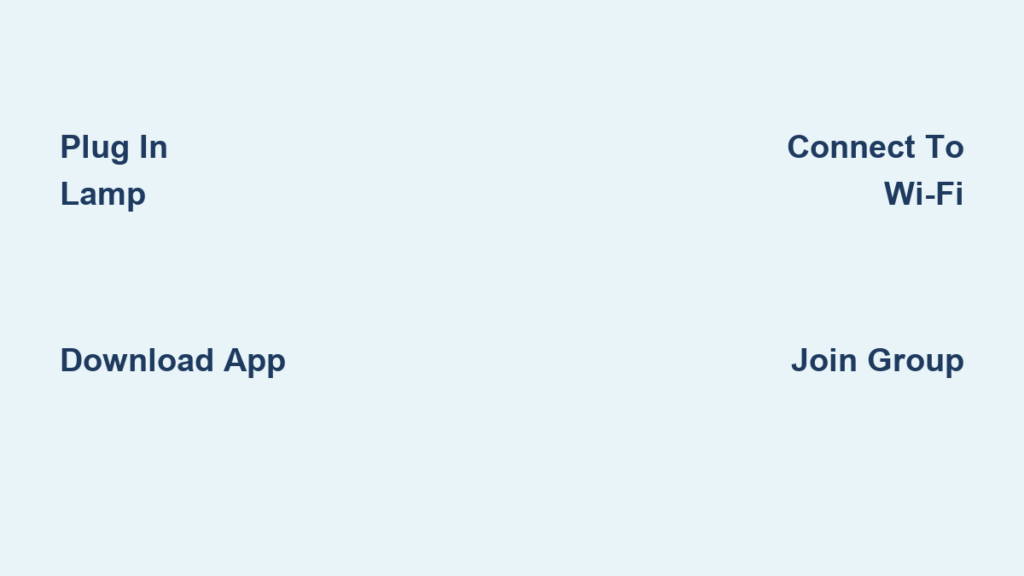
Start by connecting your LuvLink Lamp to power using the included USB cable. Plug it into a wall adapter, power bank, or computer USB port. Once powered, the lamp emits a dim red glow, signaling it’s on and ready for setup. Keep the lamp plugged in throughout the entire pairing process, as unplugging can interrupt setup.
All LuvLink models including Friendship, Infinity, and Voice require continuous power. Never operate the lamp on battery-only mode, as this will prevent it from receiving taps from your loved ones.
Download and Install the LuvLink App
You need the LuvLink app to control and connect your lamp. Here’s how to get it:
- Open the App Store on iOS or Google Play Store on Android
- Search for “LuvLink”
- Download and install the official app from LuvLink Inc.
- Open the app and create a new account using your email and a secure password
Creating an account is essential because it syncs your lamp to the cloud, enables group sharing, and lets you manage settings from anywhere. Each user needs their own separate account.
Add Your Device and Create or Join a Group

After logging in, tap “Add Device” on the home screen. You’ll see two options: Create New Group for first-time users or Connect to Existing Group for joining a shared circle. Choose based on your situation.
If you’re setting up the first lamp in a group, you become the Group Admin. Select “Create New Group” and the app displays a unique group ID, either as a QR code or a MAC ID on the lamp’s base. Save this ID securely and share it only with trusted people who should join. Admin powers include approving new members, removing users, and adjusting shared settings.
To join an existing group, tap “Add Device” then “Connect to Existing Group.” Enter the exact group ID provided by the admin, making sure to match the case exactly with no extra spaces. Submit the request and wait for approval.
Connect Your Lamp to Wi-Fi for Global Sync
To link the lamp to your network, scan the QR code on the lamp’s base using your phone’s camera in the app. If scanning fails, manually enter the MAC ID instead. This binds the physical device to your app account.
Select your 2.4 GHz Wi-Fi network from the list. Enter the password carefully, double-checking for accuracy. Tap “Connect” and wait for confirmation. Success is shown by three green ticks in the app, and the lamp performs a swirling green animation confirming it’s online.
If your lamp has Bluetooth for initial detection but it fails, select “Use Wi-Fi Setup” in the app and manually enter the MAC ID. Lamps without a Bluetooth logo rely solely on Wi-Fi setup, so skip Bluetooth steps entirely.
Approve Group Members and Confirm Connection
Once a user submits a request to join your group, you receive a notification as the admin. Open the group page, find the pending member showing as yellow in status, and tap “Approve.” After approval, the lamp turns green with a swirl, then displays its active color. Both lamps now sync and respond to taps.
Use visual cues to monitor connection health. The dim red glow means powered on but not yet connected. Yellow indicates a join request sent, awaiting approval. Green swirl shows connected and approved. Solid color means active and online. Off or dim indicates the sleep timer is active or the lamp is unplugged.
Customize Lamp Settings in the App
Personalize your lamp’s appearance and behavior through the app. Tap the color wheel to select any hue, or tap and hold the top surface to cycle through colors manually. Adjust brightness from 10% to 100% in the app under Brightness Settings. Set warmer tones like orange or pink for evening use and bright whites for daytime alerts.
Control how long the lamp stays lit after a tap by going to Settings and Dimming Time. Choose from 10 seconds, 30 seconds, 1 minute, or 5 minutes. Enable the Sleep Timer to auto-off during rest hours by setting start and end times. During sleep mode, the lamp won’t light up unless configured to allow exceptions. Parents can disable nighttime taps so children aren’t disturbed.
Want to know when someone taps your lamp even when the app is closed? Go to Notifications in the app and toggle on “Tap Alerts.” Allow push notifications when prompted by your phone.
Send and Receive Connection Taps
The core feature of the LuvLink Lamp is the touch-based emotional signal. Gently tap the top of your lamp to send a message. All paired lamps in the group light up instantly, displaying the current color setting. Recipients get a visual glow, a silent “I’m here” message. No words are needed, making it perfect for moments when a text feels too heavy or too light.
When someone taps their lamp, your lamp illuminates immediately and stays lit based on your dimming time setting. Optional phone notifications alert you even if you’re not near the lamp. If unplugged, the lamp won’t receive taps in real time. Upon reconnecting, it resumes normal function, though missed taps are not stored in most firmware versions.
Troubleshoot Common LuvLink Lamp Issues
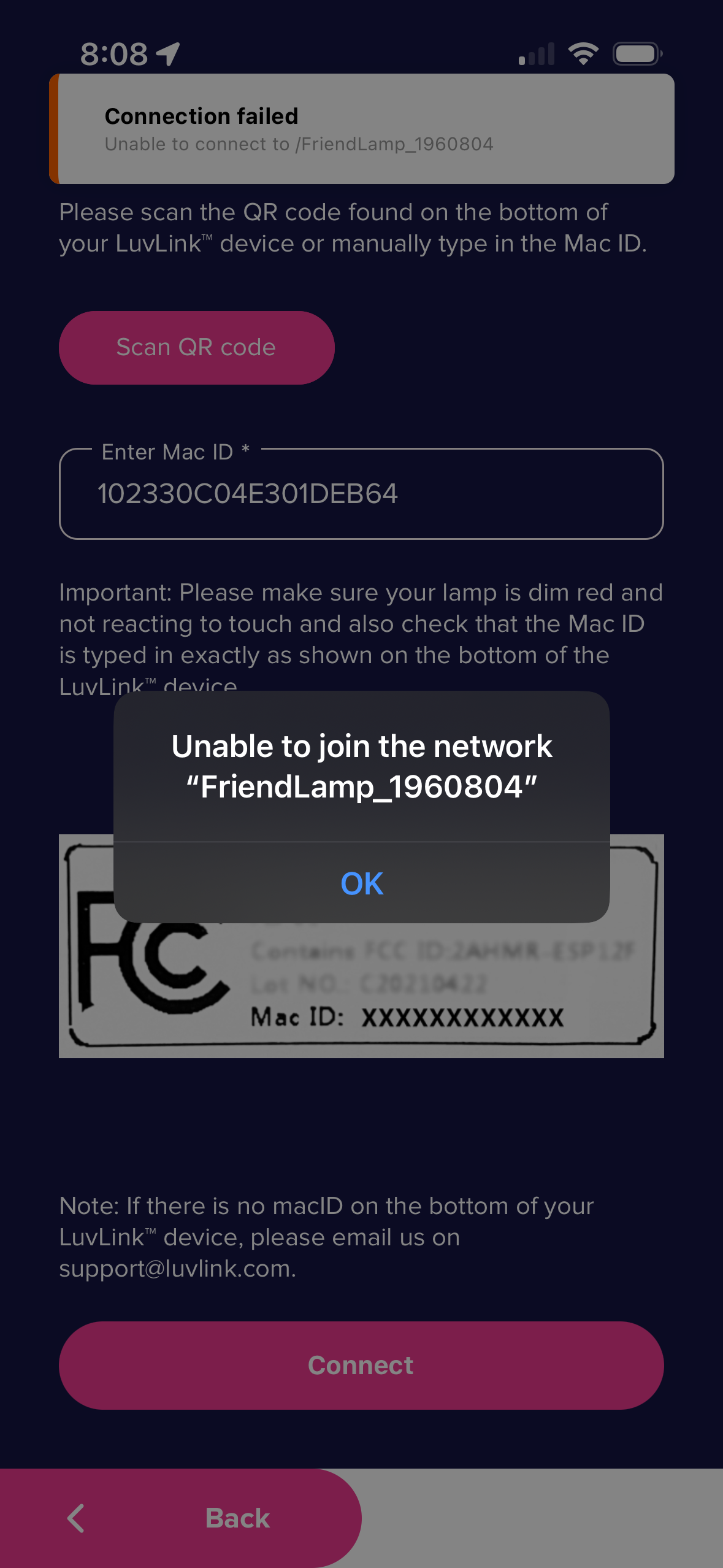
If your lamp won’t connect to Wi-Fi, confirm you’re using a 2.4 GHz network, not 5 GHz. Re-enter the Wi-Fi password carefully, as case matters. Restart your router and try again. Select “Use Wi-Fi Setup” manually if Bluetooth fails. Move closer to the router during setup if problems persist.
If a join request isn’t approved and the lamp stays yellow, contact the group admin and ensure they check the group page and tap “Approve.” Remember each user must have their own account.
If taps aren’t received by other lamps, check if the recipient lamp is unplugged or offline. Verify Wi-Fi connection is stable and the sleep timer isn’t active. Check the app to see if the lamp shows “offline.” Restart the lamp by unplugging for 10 seconds and replugging. Verify both lamps are in the same group.
If color won’t change when tapped, clean the top surface with a dry cloth as dust or oil can block touch sensitivity. Try changing color in the app instead. Restart the lamp and retry. Use the app for reliable color control as a fallback.
If all else fails, perform a factory reset by pressing and holding the top of the lamp for 15 or more seconds. Watch for a rapid red flash indicating reset is complete, then re-pair the lamp using the app from scratch. This removes all settings and group links, so use it only as a last resort.
Maintain Your LuvLink Lamp for Long-Term Use
Keep your LuvLink Lamp looking new by wiping it with a dry or slightly damp cloth. Avoid harsh chemicals, alcohol, or submersion in water. Place the lamp away from direct sunlight, heat sources, or humid areas like bathrooms. Most models use matte plastic or ceramic, which is scratch-resistant but not indestructible.
LuvLink delivers over-the-air firmware updates via the app. Updates improve stability, add features, and fix bugs. Ensure your lamp stays plugged in and connected to Wi-Fi. Open the app periodically to check for updates. No manual download is needed, as updates install automatically when available.
You can belong to more than one group, such as family and best friends. Label each group clearly in the app like “Parents” or “College Roommates.” Use Secret Code Mode to create a discreet tap pattern. Go to Settings and Secret Code to set a custom tap sequence or color flash pattern, then share it only with close members for private signals like “I miss you” or “Call me.”
Best Practices for LuvLink Lamp Users
Share your group ID securely via encrypted messaging apps like Signal or WhatsApp, or share it in person. Avoid posting on social media or public channels. Change the group ID if someone leaves who shouldn’t have access to your private circle.
If you manage multiple lamps or groups, use small labels on the base for clarity, such as “Mom’s Lamp” or “Study Group.” This helps avoid confusion during setup or troubleshooting.
Set quiet hours using the sleep timer to prevent disturbances. This is ideal for bedrooms, elderly users, or shared spaces. Allow emergency taps by enabling “Always Notify” in advanced settings if available on your model.
Check for firmware updates monthly or enable auto-updates in your app store. Regular updates ensure smooth performance, security patches, and new features like voice integration on Infinity Voice models.
Frequently Asked Questions About LuvLink Lamp
Can I use LuvLink Lamp without Wi-Fi?
No, Wi-Fi is required for the LuvLink Lamp to function. The lamp needs an internet connection to send and receive taps between group members. Bluetooth alone cannot support the global sync feature.
How many people can be in one LuvLink group?
The LuvLink system supports multiple users in a single group, though the exact limit may vary by firmware version. Each user needs their own account and lamp device. The group admin approves all new members.
What happens if my lamp loses power during a tap?
If your lamp is unplugged or loses power, it won’t receive taps in real time. The lamp will resume normal function once reconnected, but missed taps are typically not stored or displayed retroactively.
Can I control multiple LuvLink lamps from one account?
Yes, you can control multiple lamps within the same account. This is useful for managing several lamps in different rooms or for different groups. Each lamp can be customized with different colors and settings.
Does LuvLink work internationally?
Yes, LuvLink works globally as long as both lamps have internet access. The connection relies on Wi-Fi and the cloud, not proximity, so distance is not a limitation.
Is there a monthly fee for using LuvLink?
The LuvLink app and basic features are free to download and use. Check the official website for any premium features or subscription options that may be available.
Key Takeaways for Using Your LuvLink Lamp
The LuvLink Lamp turns digital distance into emotional closeness through simple taps and shared colors. To get started, plug in your lamp, download the LuvLink app, create an account, and connect to Wi-Fi using the QR code or MAC ID. Create or join a group using the unique group ID, and wait for admin approval before your lamp goes live.
Customize your experience by adjusting colors, brightness, and dimming times. Enable push notifications so you never miss a tap from a loved one. Use the sleep timer to prevent nighttime disturbances, and explore secret code mode for private, meaningful signals.
Maintain your lamp by keeping it clean, ensuring it stays plugged in, and installing firmware updates when available. Share your group ID only with trusted people and label multiple lamps if needed.
Remember: “Apart but never alone.” Your LuvLink Lamp is more than a device, it’s a tangible connection to the people who matter most, no matter the distance.